
Simple Product
Simple Product
Ideal for products of one variation, so a single size and colour or singular item.
Virtual and Downloadable checkbox’s
If your product is a virtual product it will completely remove the shipping options from the product data and checkout.
A downloadable product will ask for a number of different data points, such as the file to be used, download limit and an expiry date.
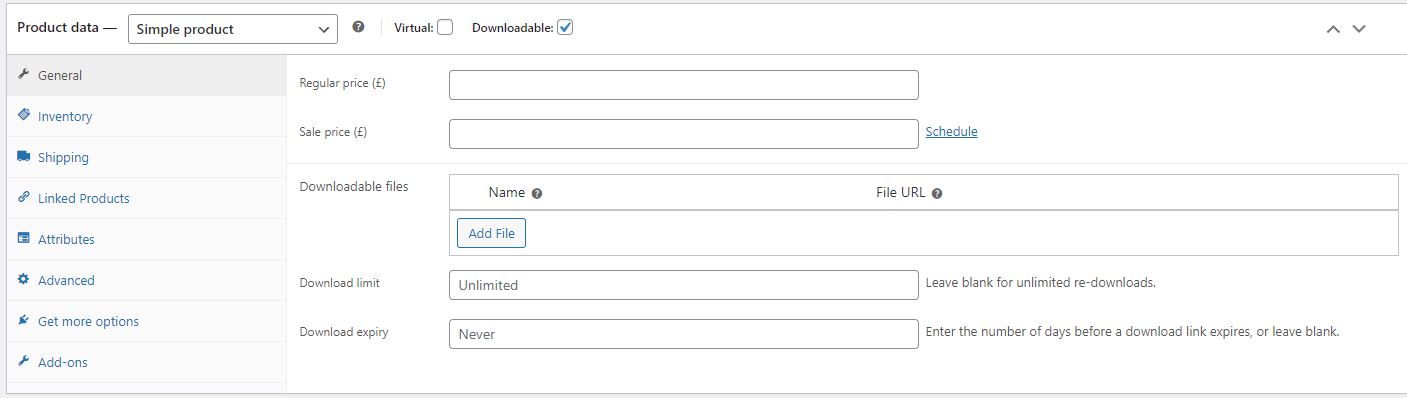
Downloadable Product
We do suggest an additional feature called ‘Download Manager’ if you are looking to sell a majority of digital products.
‘General’ Sub-Section.
The simple product prices are shown in the image above, you will have 2 options, regular price and sale price. These are exactly what you would expect. The product will not be able to be added to the cart with no prices entered here.
If you are running a sale, the regular price will be scored out and a sale badge will be shown on your product as long as you enter the sale price (Below the regular price.)
‘Inventory’ Sub-Section.
In this area, you will see a number of further options, some of them are hugely important, whilst others are not.
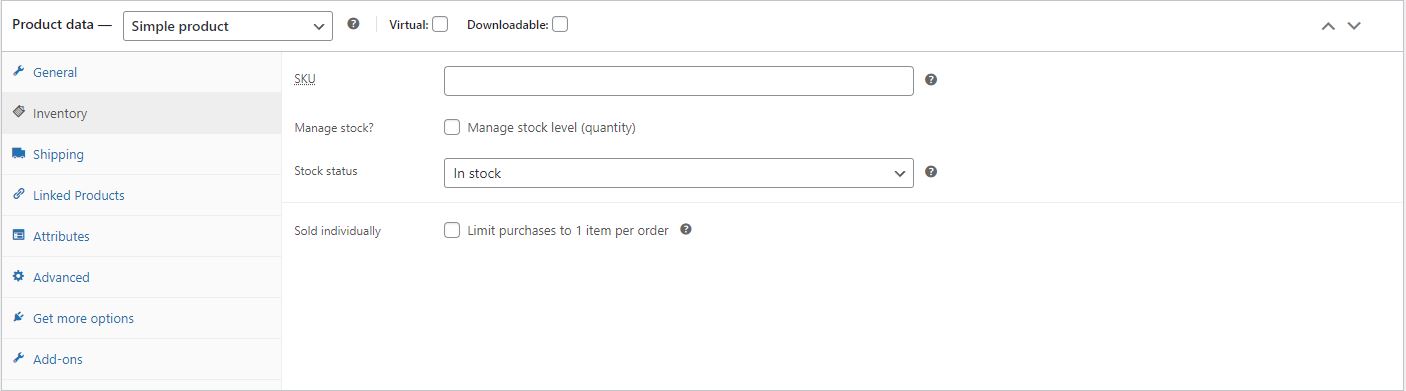
Inventory Sub-Section
Lets look at each option here;
- SKU – Stock Keeping Unit, This is mainly for larger stores that sell both online and in person from a physical or many physical stores. This allows the system to keep track of items available if they are all supplied from the same storage unit or warehouse.
- Manage Stock? – If the stock is either unlimited, or supplied to demand from the main supplier, then leave this un checked. This will keep the product available and ready for sale no matter how many orders come rolling in. If however you only have a select amount available and/or the main supplier has delays, then check this box for further options.
- Stock Quantity – This allows you to display the amount of items remaining for sale.
- Allow back-orders? – There are a few options here for a delayed product, you can either ‘Allow’ ‘Do Not Allow’ or ‘Allow but notify customer’
- Low Stock Threshold – This will display a low stock ribbon on the product when it reaches the number entered here, and will also notify you that the specific product now has low stock.
- Stock Status – Here you can select if the product is in or out of stock, or on back order.
- Sold Individually – If your items are limited in nature, then this may be a good choice. It simply allows customers to only buy one of the selected product.
‘Shipping’ Sub-Section (Brief)
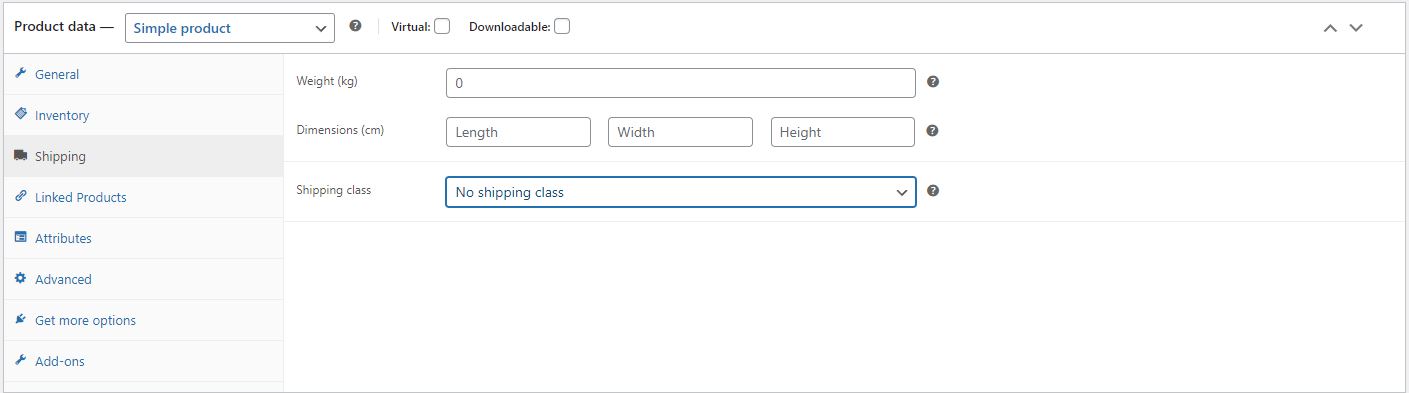
Shipping Sub-Section
The shipping Sub-Section doesn’t appear very complicated here, but the depth is almost unmeasured. Most, if not all of your shipping options will have been figured out and configured during our initial research period of your website project, so it should all be up and running automatically already.
But, (Skip to the next Sub-Section if you are already happy with flat rate shipping.) If you require different shipping rates for different products, or even product categories, then you will have a small amount to do here, per product.
The most common shipping method that we will employ to amend itself depending on the items in the basket will be weight based shipping. We will have sat down and discussed the various weight options during the research and build phase, but now you will have to add the weight under the shipping Sub-Section. This will be in KG’s only, so an item weighing 200g will be entered as 0.2.
If we go down the route of weight based shipping, we would need a good thorough list of your expected shipping costs for numerous weight categories. It would look something like;
- 0-0.9KG – UK Royal Mail – £3.50
- 1 – 1.9KG – UK Royal Mail 48 Hours – £4.50
- 2 – 5KG – Courier – £9.99
Then when your customer adds any items to the basket, the shipping rate will be calculated due to the weight of the basket. So a single item below 0.9KG would be £3.50. 2 items below 0.9KG would still remain £3.50. But another item may push the weight above 0.9KG which would amend the price automatically.
Another option to use is flat rate shipping. We can offer a number of various options for your customers to choose at checkout, such as 2nd class £2.50 1st class £3.50 etc. Or we can set shipping classes up, for small, medium or large packages that will each have their own flat rates.
For example;
- Shipping classes could be split over;
- Small packages – £2.50
- Medium Packages – £3.50
- Large Packages – £9.99 and so on.
Then when you add a new product, you can visit the shipping sub-section and select the relevant shipping class for that product and let the checkout do the rest of the work for you.
If we go down the ‘Shipping Class’ route, you will have already decided on how we configure it. the 2 main options here for us to configure are;
- Per product shipping class – Which means that each time an item is added to the basket, the flat shipping rate for that item will be added for checkout. So if you have 2 small packages from the list above and add them to the basket, shipping would display as £5.00 Which could soon turn your customers away.
- Per basket Shipping Class – This allows the flat rate shipping to be changed to cover the entire basket, and will add the flat rate for the most expensive shipping class. This will keep shipping costs much lower for your customers, but still cover your largest item.
- Tip – Our handy tip for shipping from experience is to absorb the shipping costs in your product prices as much as possible. We have done a fair bit of research on our own journey and found that a huge amount of people turn back at the checkout if they have to pay shipping. Some have even said they would probably pay more for an item for free shipping as it is just the horrible thought of the additional fee at checkout.
- One way that we have often setup online store checkouts previously is to absorb most of the costs and offer either free shipping, a very small flat rate or a mixture of both. ‘Free Shipping’ when you spend £35.00 for example. It is always worth a good deal of thinking about.
‘Linked Products’ Sub-Section.
Linked products are broken in to 2 key parts.
- Upsells – Upsells are for items of better quality or profit for your store, they are displayed on the product page beneath the product data. The way that we generally setup single product pages, we incorporate a certain amount of this as standard. We usually incorporate an area for related products.
- Cross-sells – Cross-sells are displayed in the cart during checkout. These are kind of like final chances to try and get your customers to add extra items to the basket. As an example, let’s say that you have a bumble bee hat for sale, a customer adds it to the basket and goes to checkout. If you have a bumble bee mug as a cross-sell, the cart will jump up like, ‘Hey, as you like the bumble bee hat, why not look at the bumble bee mug too.’ We like cross-sells very much.
‘Attributes’ Sub-Section.
We discussed ‘Attributes’ quite deeply in previous parts of this training, but we will go over some details again here.
Attributes are specific details for your items, such as sizes, colours or gender options. For a simple product they are additional information types. In out previous parts of the training we added a ‘Brand’ with a link to all those ‘Brand’ items. but you could add anything you wish. Attributes come in to there own for other product types.
‘Advanced’ Sub-Section.
Don’t let the name fool ya! The advanced Sub-Section is a pretty easy one to understand.
You have 3 main options.
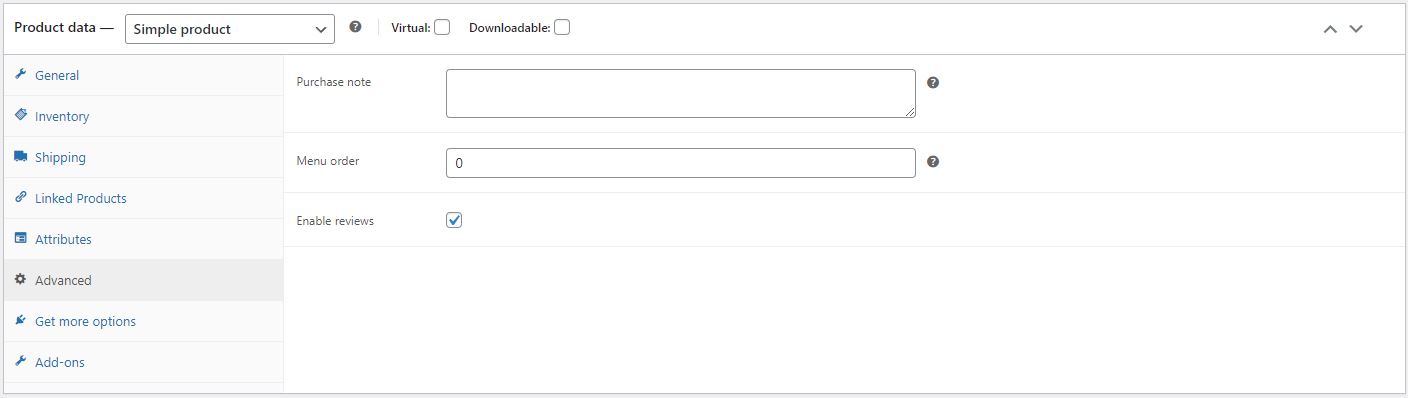
Advanced Sub-Section
- Purchase Note – What ever you enter here, will be converted and sent to the customer after completing checkout as an email.
- Menu Order – This allows you to customise the position of the product in the menu structure, we will normally have created a specific menu structure though, so be careful with this option.
- Enable Reviews – Reviews are a very important part of online shopping, have you ever been umming and arghing about buying a specific product, then read a few reviews that leads to the sale? A huge percentage of online customers do exactly this.
Get more options and Add-Ons are for additional functions that we will not discuss at this stage.