
Products – Add New Options and Settings
Adding a new product to your store at first glance seems like a mission!
Once you start to understand what each of the options are used for, it starts to make a great deal of sense, and allows you to maximise your products within your store, giving the end customers a perfect online shopping experience.
Firstly, navigate to the Products – Add New menu option on the side menu.
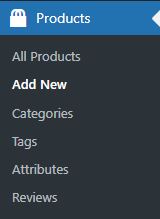
Navigation – Add New Product
You will now be faced with the add new product/product edit page. There are many options to work through within this page, which is why we are breaking it down to individual topics to discuss.
Here we will talk about what each option is, and more importantly, why you need to know about them and ultimately understand them.
Firstly we will discuss the title box. The product title can be what ever you wish, but is recommended to be a short and decisive product title.

Product Title Box
As you can see on the image above, a ‘Permalink’ appears under the title box once you publish the product.
Next up are the ‘Product Descriptions’ and yes, it is intentionally plural. There are 2 product description boxes for each product. The first one seen is just below the product title box, this one is for the full description, usually displayed in it’s own separate area within a product page. This keeps it out of the way but easy to find, but ultimately it keeps the ‘Add to Basket’ button easy to see with the images etc.
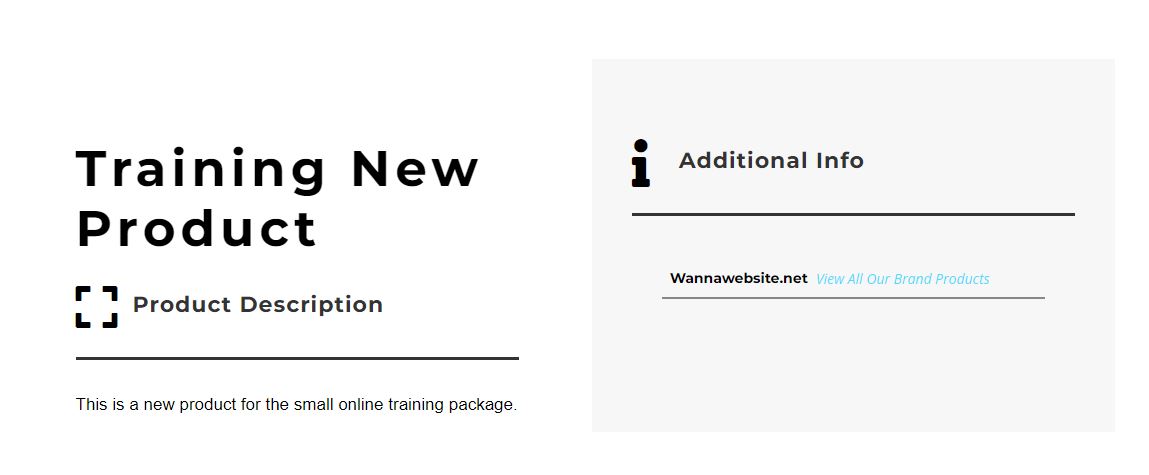
Product Description
The short description is seen towards to the bottom of the add product page and is used for the catchy short description displayed with all of the other handy areas of the product page to help your customer click the add to basket button.
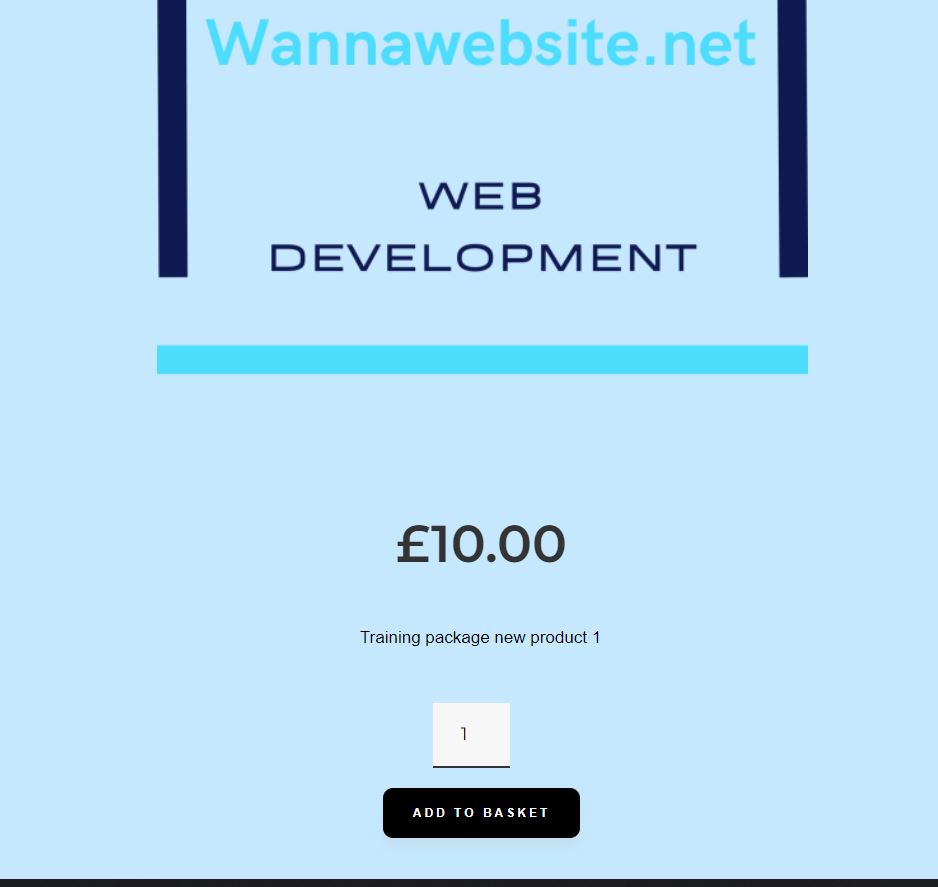
Short Description
You can see above that each are displayed differently and it is imperative that the short description remains short and to the point to reduce the ‘Eye Burdon’ on your customers in the add to basket area.
Next up is the ‘Publish’ box. This is where you will find all the info/options you need with regards to publishing a new product or draft product.
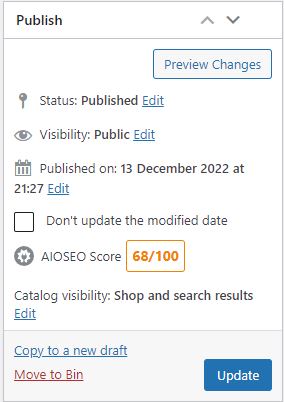
Publish Box
Working from the top, the publish box contains;
- Preview Changes – This is pretty much the same as clicking the Permalink under the title box to see how the product looks to your customers. A handy hint is to right click this preview button and select ‘open in new tab’ to prevent you from navigating away from the editing page until you are ready.
- Status: Published (Edit) – This allows you to set the product to;
- Published – Clearly visible and live on your website.
- Pending review – Allows you to have a lower level contributor review and edit the product, if you publish it straight off, they will no longer have access unless they have all the editing rights.
- Draft – Is for any products that perhaps contain a lot of information, images or options and you don’t complete it in the first sitting. Save it as a draft to continue later.
- Visibility: Public (Edit) – Shows the options for who can see the product and how.
- Public – Allows all visitors/customers to view the product as normal.
- Password Protected – When a visitor navigates to the products page, a password box will be displayed, so only visitors with the password can view that product.
- Private – This hides the product from everyone on the front end apart from the admin, however the admin will see a flag stating Private when viewing the front end of the website. This is a handy function for repeat time sensitive products such as seasonal ranges. Rather than removing and re-adding them year after year, simply set them as private.
- Published date – Shows you when the product went live.
- Don’t update the modified date tick box – This just prevents the modified box filling up if there are plenty of updates rolling in for a given product.
- AIOSEO Score – This shows your product SEO (Search Engine Optimization) score. We will have discussed the SEO as we traverse your website project. Generally anything on this score above 60 is classed as good and above 80 is excellent.
- Catalog Visibility – This has many options for where to display the product;
- Shop and Search Pages, one or the other or hidden completely. The Shop page option displays the product in any of the product archives, the shop page, category pages or brand pages, whereas search results will be displayed on a separate page after the visitor searches for a product.
Finally you can move the entire product to the bin, or click the button. a new product will have a nice blue button saying ‘Publish’ whereas an older product under edit will simply display update.